Commands Reference
Complete guide to all Discord slash commands and their usage
Core Commands
Essential commands available to all users
| Command | Description | Usage |
|---|---|---|
/picks | Check a user's fight predictions for current or past events | /picks [user] |
/avatar | Display a user's Discord avatar | /avatar [user] |
/balance | Check your current virtual coin balance | /balance |
/give | Transfer some of your coins to another user | /give <user> <amount> |
Betting Commands
Virtual betting and wagering features
| Command | Description | Usage |
|---|---|---|
/bet | Open your betting dashboard to place bets on fights | /bet |
/mybets | View your betting history and active bets | /mybets |
/betstats | View detailed betting statistics and performance | /betstats |
/odds | Get current betting odds for upcoming fights | /odds [event] |
Leaderboards
Rankings and competitive features
| Command | Description | Usage |
|---|---|---|
/top10 | Display the top 10 users with the most coins | /top10 [post] |
/leaderboard event | Show event-specific leaderboard rankings | /leaderboard event [event] |
/leaderboard month | Show monthly leaderboard rankings | /leaderboard month [month] [year] |
/leaderboard global_event | Show global cross-server event leaderboard | /leaderboard global_event [event] |
/leaderboard servers | Show server vs server leaderboard rankings | /leaderboard servers |
Administration
Server management and configuration
| Command | Description | Usage |
|---|---|---|
/configure | Configure server channels for polls and bot notifications (Admin only) | /configure |
Statistics
Performance analytics and insights
| Command | Description | Usage |
|---|---|---|
/stats server | Display comprehensive server statistics | /stats server |
Commands In Action
See how these commands look in Discord with real examples from active servers.
Monthly Leaderboard
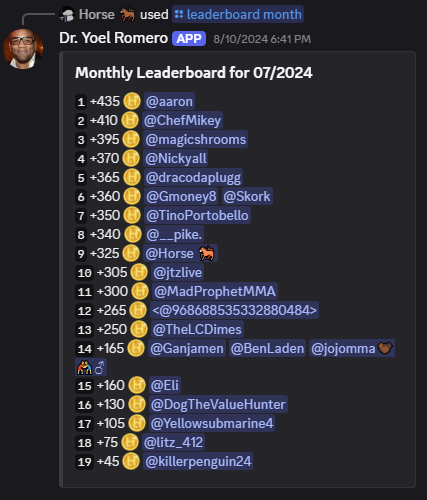
Use /leaderboard month to see monthly rankings
Server Statistics
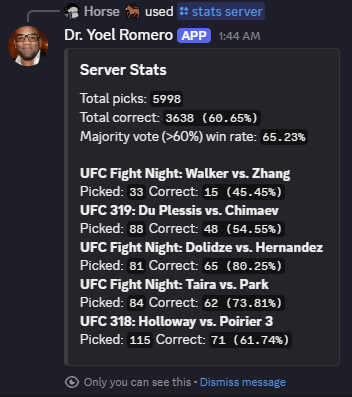
Use /stats server for comprehensive server analytics
Getting Started
All commands use Discord's slash command system. Simply type / in any channel where Fightbot is present to see available commands.
Type /
Start typing a slash command in Discord to see all available Fightbot commands
Select Command
Choose from the autocomplete list or type the full command name
Add Parameters
Fill in any required parameters and optional ones as needed
Ready to Try These Commands?
Add Fightbot to your Discord server and start using these commands during your next MMA event.